Administrator Account Management
The Account Management module is where the System Administrator (Super Admin) creates and assigns S-Safe software access permissions to operational personnel. The system provides a clear permission hierarchy to ensure information security and prevent erroneous actions by unauthorized users.
1. List Interface
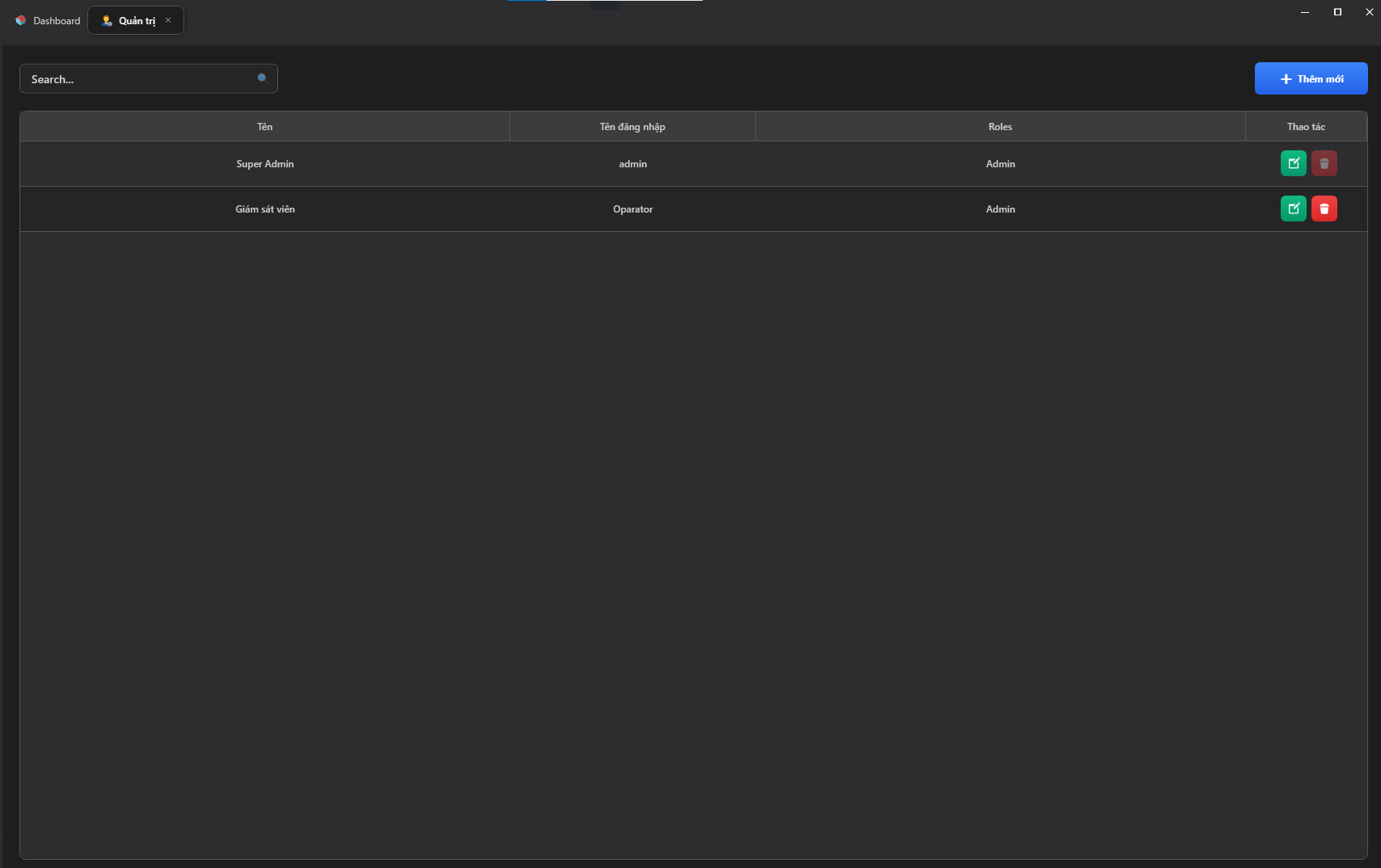
The main screen displays a list of all accounts currently authorized to log into the software. The interface uses an intuitive table (Listview) format with the following key columns:
- Name: The display name or full name of the user.
- Username: The account name (Username) used to log into the system.
- Role: The permission level of the account (e.g.,
AdminorOperator). - Actions: Contains function buttons to Edit or Delete the account.
2. Adding and Assigning Permissions
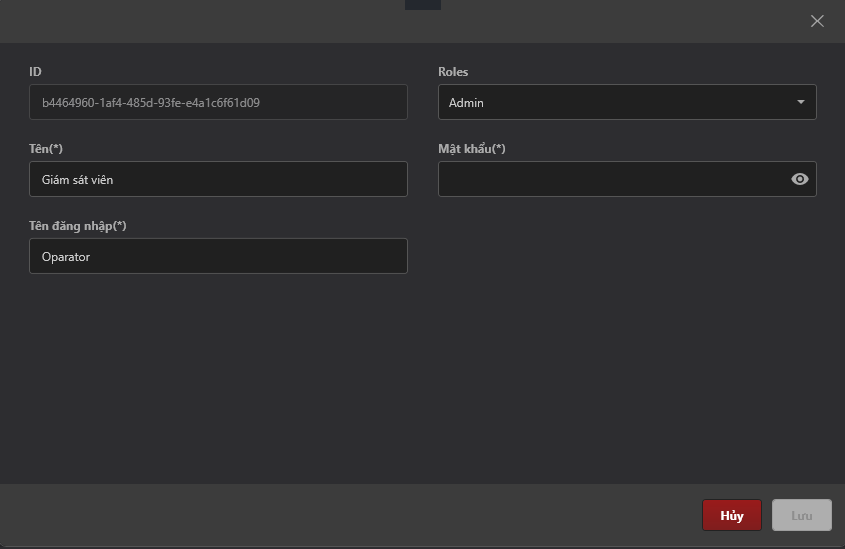
To create a new account for an operational staff member, click the + Add New ➕ button. A pop-up dialog will appear requesting the following information:
- ID: The user's identifying code (can be auto-assigned by the system or entered manually).
- Role: This is the most critical setting, as it determines which features this account is permitted to use:
- Admin (Administrator): Has full access rights, including editing hardware, deleting data, and creating other accounts.
- Operator: Can only view statuses, monitor doors/cameras, and export reports, but is not permitted to delete devices or modify core configurations.
- Display Name: Enter the person's real name for easy management.
- Username: Write without spaces or diacritics (e.g., nguyenvana, admin_building).
- Password: Set a default password for the user.
Never assign Admin rights to personnel who only perform shift monitoring or surveillance duties. After creating an account, require the user to change their password on first login to ensure security.
3. Editing and Deleting Accounts
- Edit: Click the 📝 icon (green) in the actions column to update information or reset the password if an employee has forgotten it.
- Delete: Click the 🗑️ icon (red) to permanently revoke that account's access rights (typically used when an employee leaves the company).