Reports & Event History (System Reports)
The Reports module stores the complete operational history, access event logs, security alerts, and hardware status of the entire S-Safe system. Every card swipe action (Granted or Denied), forced door open, or device connection loss is recorded in detail here with real-time timestamps.
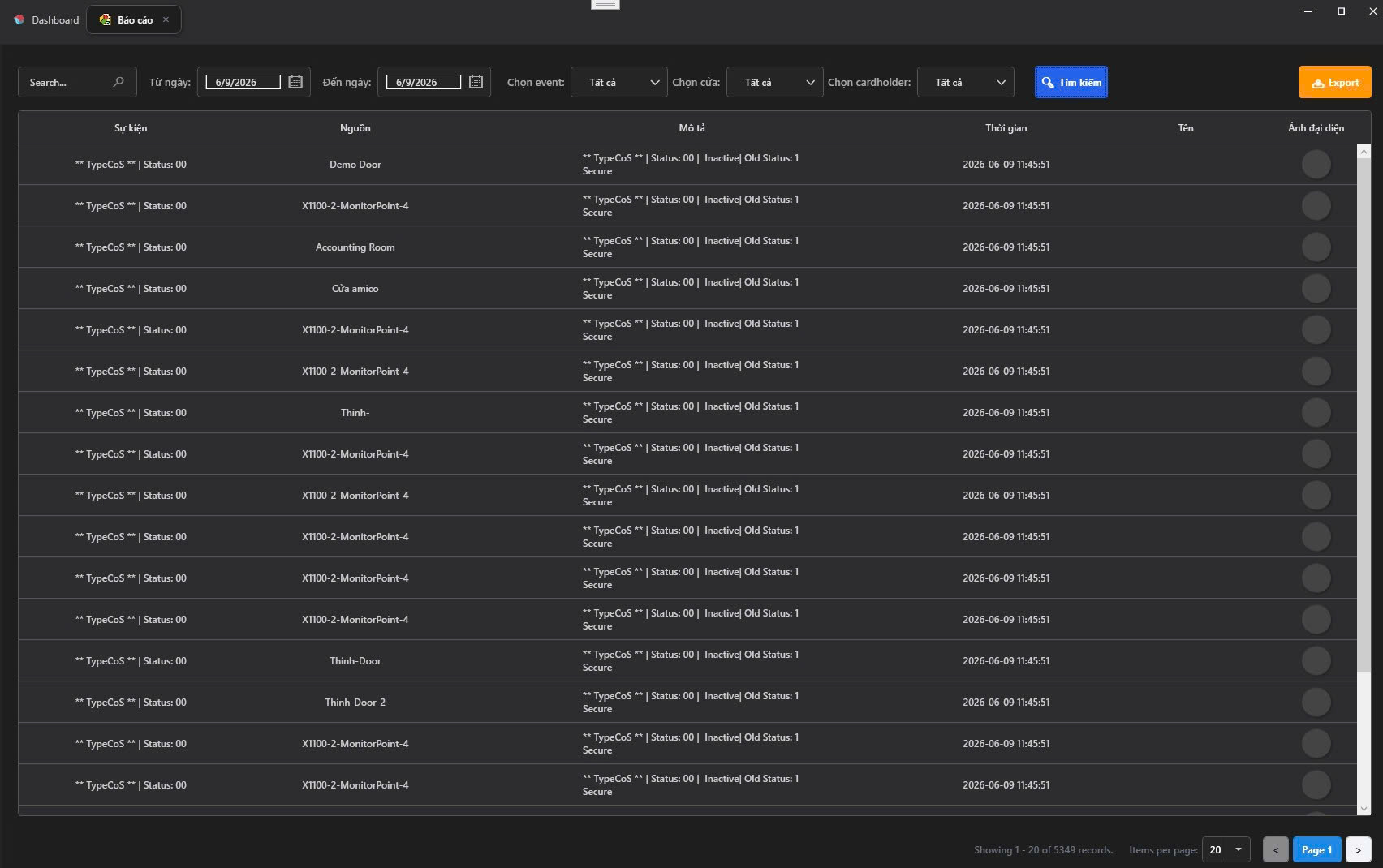
1. Advanced Event Query Filters
To accurately search for events within a large dataset that may contain thousands of records, S-Safe provides a powerful multi-condition filter toolbar at the top of the screen:
- From Date / To Date: Restricts the time range for history retrieval.
- Select Event: Filters specifically by event type (e.g., Successful card swipe, Invalid card, Door held open too long...).
- Select Door: Displays only the access history for one or more specified doors in the building.
- Select Cardholder: Retrieves the individual movement history of a specific employee or visitor.
- Search Box: Quickly enter keywords to filter by name, device code, or event description.
- Search Button 🔍 (Blue): Activates the system to scan data according to the configured filter matrix.
2. Event Log Table Structure
Report data is displayed in a detailed chronological table, sorted from newest to oldest:
- Event: The event code or system event group classification (e.g., device signal status, authentication type).
- Source: The name of the device or area where the event originated (e.g., Main Entrance, Accounting Room, X1100 Secondary Reader...).
- Description: Provides the logical state details of the event at the time it occurred (e.g., Door is closing, device switching to Secure mode).
- Time: The exact timestamp of the event, accurate to the second (Format: YYYY-MM-DD HH:mm:ss).
- Name: Displays the user's full name if the event is related to an identified card swipe.
- Profile Photo: The employee's profile picture for quick visual cross-referencing by security personnel, helping to prevent card fraud.
3. Export Report File
When data needs to be provided for a security investigation or periodic archiving for building management:
- Configure the event filters according to the required criteria and click Search.
- Click the Export 📥 button (orange) in the top-right corner of the screen. The system will automatically compile all results and download an Excel (
.xlsx) file to your computer, preserving the column structure so you can easily apply formulas or print reports.